
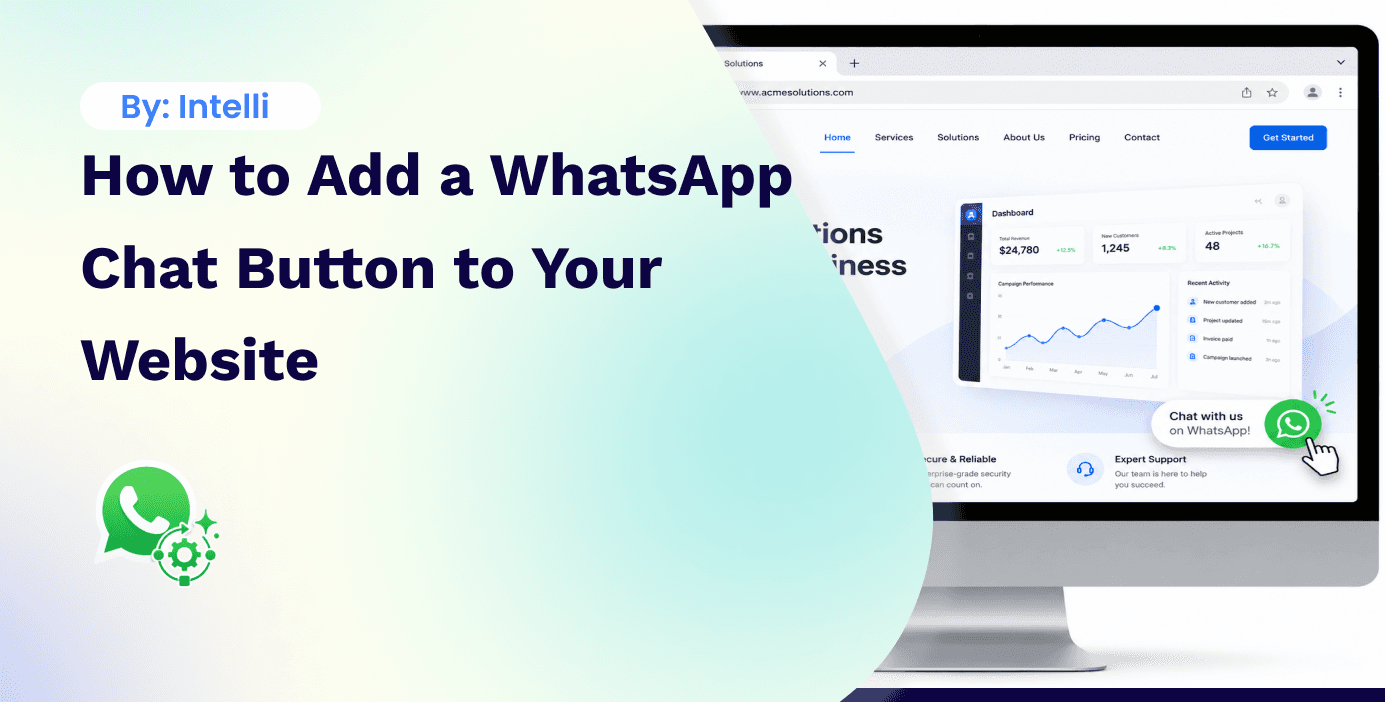
A WhatsApp chat button is a widget on your website that opens a WhatsApp conversation when a visitor clicks it. Adding one takes less than 30 minutes and connects your website traffic directly to your best-converting communication channel. Every person who clicks the button and messages you is an opted-in WhatsApp contact — the starting point for automated follow-up, broadcasts, and ongoing communication.
What a WhatsApp Chat Button Does
A WhatsApp chat button typically appears as a floating green icon in the bottom corner of your website. When a visitor clicks it, WhatsApp opens on their device with a pre-filled message or a greeting from your business, ready for them to send.
The button creates a direct bridge between website traffic (people who found you through search or ads) and WhatsApp (where you can respond instantly, qualify the lead, and continue the relationship long after they leave your website).
For businesses running click-to-WhatsApp ads on Facebook and Instagram, the website button serves the same conversion function — but for organic traffic instead of paid traffic.
The Three Main Options for Adding a WhatsApp Button
Option 1: The Simple wa.me Link (Free, No Code)
WhatsApp provides a universal link format that opens a conversation with any number when clicked:
https://wa.me/[phone number]
Replace [phone number] with your WhatsApp Business number in international format with no spaces, dashes, or plus signs. A Ghanaian number +233 20 123 4567 becomes: https://wa.me/233201234567
You can also pre-fill a message that appears in the customer's WhatsApp input field:
https://wa.me/233201234567?text=Hi%20I%20have%20a%20question
The %20 represents a space. This pre-filled message reduces friction — the customer just needs to tap send rather than typing anything.
How to add this to your website: Create a button or image on your website with this URL as the link. Any web developer or website builder (Squarespace, Wix, WordPress, Webflow) can add this in minutes.
Limitation: A plain wa.me link is just a link. It has no analytics, no customisation beyond the pre-fill message, and does not integrate with your CRM or conversation management platform.
Option 2: A WhatsApp Chat Widget (Branded, No Backend Required)
Several services provide a JavaScript snippet that adds a branded WhatsApp widget to your website. When installed, it adds a floating WhatsApp icon in your chosen corner with a customisable greeting message.
A common free option is the "Elfsight WhatsApp Chat" widget. To install:
Create an account at elfsight.com
Configure your widget (business name, phone number, greeting message, position)
Copy the JavaScript snippet provided
Paste it before the </body> tag in your website's HTML, or in the custom code section of your website builder
This works on WordPress, Shopify, Wix, Squarespace, Webflow, and any site where you can add custom code.
Option 3: Intelli's WhatsApp Website Widget (Integrated, AI-Powered)
Intelli's website widget is a professional chat widget that connects directly to your Intelli platform. Unlike the wa.me link or third-party widget options, this one:
Routes conversations directly into your Intelli team inbox (no separate WhatsApp app needed)
Triggers your AI assistant automatically for incoming conversations
Captures the visitor's details as a contact in your Intelli CRM
Allows your team to respond from the Intelli dashboard on desktop
Provides analytics on widget clicks and conversation starts
This is the right option for businesses that want website chat to feed a proper sales or support funnel rather than landing in a personal WhatsApp app.
What Pre-Fill Message to Use
The pre-fill message that appears when a visitor clicks your WhatsApp button significantly affects conversion. Options to test:
Category-specific: If different sections of your website serve different audiences, link different pages to pre-filled messages appropriate to that section. A pricing page button might pre-fill "I would like to know more about your pricing" while a support page button might pre-fill "I need help with."
Open-ended but directed: "Hi, I found you through your website and have a question" is simple and honest. It sets context for your team and the AI assistant that this is a website lead.
Service/product specific: If someone is on your product page for a specific item, the button can pre-fill "I am interested in [product name]." This requires slightly more technical setup but produces highly qualified conversations.
The 72-Hour Free Window Connection
Every conversation that starts through your WhatsApp website button qualifies for WhatsApp's standard 24-hour service window. If the visitor found your website through a Facebook or Instagram ad, and you have WhatsApp buttons in both the ad and your website, the ad click generates a 72-hour free marketing window.
Read More»»»» Click-to-WhatsApp Ads: How to Run Facebook and Instagram Ads That Open WhatsApp
What to Do With the Conversations That Come In
Adding the button is the easy part. The value comes from what happens when someone clicks it.
If you have AI automation: Intelli's AI assistant responds instantly, asks qualifying questions, answers product or service questions, and routes high-intent leads to a human agent. The customer gets an immediate, intelligent response whether they click the button at 2pm or 2am.
If you do not have AI automation: Someone on your team needs to monitor and respond to incoming messages promptly. A business that adds a WhatsApp button but takes 4 hours to respond sends a worse message to potential customers than a business with no button at all. Set clear response time targets before activating the button.
The button also creates an opted-in contact. Every person who messages you through the button has initiated the conversation, which constitutes opt-in for you to follow up with them via WhatsApp. This is the starting point for building your broadcast list organically.
Frequently Asked Questions
Which position should the WhatsApp button be on my website — left or right? Most users expect interactive elements in the bottom right corner based on convention (most live chat widgets live there). Bottom right is the safer default unless your site already uses that space for something else.
Can I have both a live chat widget and a WhatsApp button? Yes. Some businesses use a live chat tool for real-time support and a separate WhatsApp button for customers who prefer WhatsApp. The experience is better if the WhatsApp button is clearly labelled "Chat on WhatsApp" so visitors know what will happen when they click.
Will adding the button affect my website loading speed? A simple wa.me link has no impact on load speed. The JavaScript-based widgets add a small amount of loading time. For most sites, this is negligible. If your site speed is critical, test with Google PageSpeed Insights before and after adding the widget.
Do I need the WhatsApp Business API to use a website chat button? No. A basic wa.me link works with any WhatsApp or WhatsApp Business App number. The API is needed if you want the conversations to route to a shared team inbox, trigger AI automation, or integrate with your CRM.
Intelli's WhatsApp website widget connects website visitors directly to your AI-powered WhatsApp inbox. Get started on the API to turn website traffic into ongoing WhatsApp relationships.


