
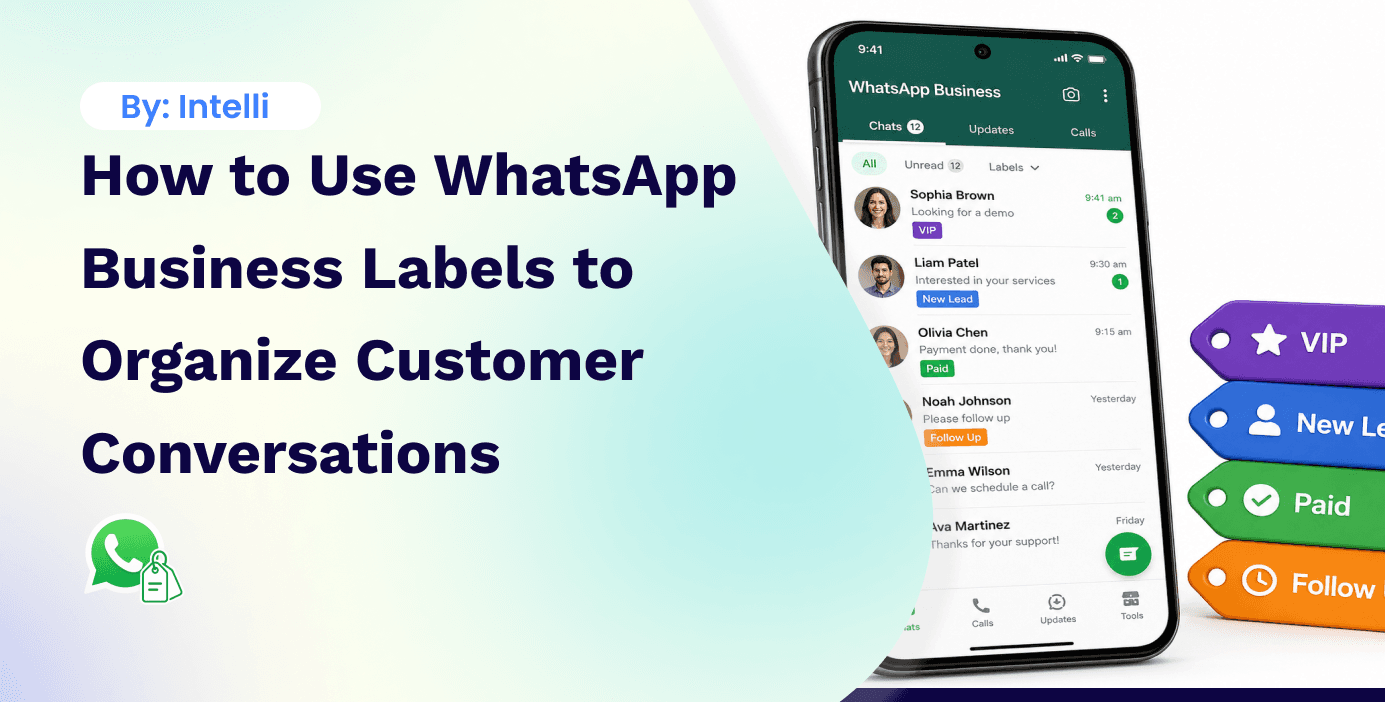
WhatsApp Business labels are colour-coded tags you can apply to conversations to organise them by status, type, or priority. They allow you to filter your inbox to see all conversations in a specific category and to find specific conversations quickly. WhatsApp Business App provides up to 20 labels. The WhatsApp Business API replaces labels with a more powerful tagging and segmentation system.
What Labels Do in the WhatsApp Business App
Labels work like sticky notes on conversations. You apply them to individual chats or messages, and they appear as coloured tags in your conversation list. You can filter the inbox to show only conversations with a specific label.
WhatsApp provides default labels you can rename:
New Customer
New Order
Pending Payment
Paid
Order Complete
Support Ticket (custom)
You can create up to 20 total labels (default plus custom).
Setting Up Labels in the WhatsApp Business App
To create a custom label:
Open the WhatsApp Business App
Tap the three-dot menu, then "Labels"
Tap the "+" button in the bottom right
Enter the label name (maximum 60 characters)
Assign a colour from the 20 available options
Tap "Save"
To apply a label to a conversation:
Open the conversation
Tap the three-dot menu inside the conversation
Tap "Label Chat"
Select the labels to apply (you can apply multiple)
Tap "Save"
Alternatively, long-press a conversation in your chat list, tap the label icon that appears at the top of the screen, and apply the label without opening the chat.
To apply a label to a specific message within a conversation:
Long-press the message
Tap "Label Message"
Select the label This is useful for marking specific messages (like payment confirmations or complaint descriptions) even if the broader conversation falls under a different label.
To filter your inbox by label: Tap the label icon at the top of your chat list. Select a label. Only conversations with that label appear.
Effective Label Systems for African Businesses
The key to making labels useful is choosing a consistent system and applying it rigorously. Here are proven frameworks for different business types.
For E-commerce and Product Businesses
Label | When to Apply |
New Enquiry | First message from a potential customer about a product |
Sent Quote | Price or catalogue shared with customer |
Payment Pending | Customer confirmed order, awaiting payment |
Paid | Payment received, order being prepared |
Dispatched | Order shipped or sent out for delivery |
Delivered | Confirmed received by customer |
Issue / Complaint | Customer reporting a problem |
This system lets you see instantly how many open orders are at each stage, identify which customers need a follow-up, and filter for complaints to ensure they are handled promptly.
For Service Businesses (Clinics, Consultancies, Agencies)
Label | When to Apply |
Prospective Client | First-time enquiry |
Proposal Sent | Formal proposal or quote sent |
Onboarded | Customer confirmed and started |
Active — Ongoing | Ongoing service client |
Follow Up | Conversation needing a follow-up within 24-48 hours |
Resolved | Issue or query fully closed |
For Schools and NGOs
Label | When to Apply |
Prospective Applicant | Enquiry about programme or course |
Application Started | Applicant has begun the application |
Application Submitted | Full application received |
Interview Scheduled | Interview or assessment arranged |
Enrolled | Applicant confirmed and enrolled |
Current Student / Participant | Active student or programme participant |
Labels vs Contacts vs Chats: Understanding What Gets Tagged
Labels can be applied to:
Conversations (chats): The most common use. Tags the whole conversation.
Individual messages: Tags a specific message within a longer conversation. Useful for flagging important messages.
Labels cannot be applied to contacts in the app's contact list independently of conversations. If you want to tag a contact as a certain type (e.g., "wholesale buyer"), you apply the label to their conversation.
When Labels Are Not Enough: Upgrading to API Segments
Labels in the Business App are manual. Someone on your team applies each label by hand. As conversation volume grows, label management itself becomes a time burden.
The WhatsApp Business API, accessed through Intelli, replaces manual labels with automated segments and tags.
What segments add over labels:
Tags can be applied automatically based on conversation content (if the AI detects a complaint keyword, it tags the conversation as "complaint" and routes it to the support agent)
Contacts can be segmented by attributes beyond conversation status: location, product purchased, date joined, campaign source
Segments are used directly in broadcast targeting: send a broadcast to all contacts tagged "wholesale buyer" or "lapsed customer — last purchase over 60 days ago"
Segment analytics show how many contacts are in each category and how they engage
For businesses reaching 50+ conversations per day, the manual nature of label management in the App creates a meaningful operational burden. The API's automated segmentation removes that burden entirely.
Frequently Asked Questions
How many labels can I create in WhatsApp Business? Up to 20 labels in the WhatsApp Business App (including the default labels Meta provides).
Can I colour-code labels? Yes. Each label can be assigned one of 20 colour options. This helps visually in the conversation list — paid orders in green, complaints in red, etc.
If a conversation has multiple labels, how does it appear in the filter view? Filtering by a label shows all conversations that have that label, even if they also have additional labels. A conversation tagged both "Paid" and "Dispatched" appears when you filter for either label.
Can I remove a label from a conversation? Yes. Open the conversation, tap the three-dot menu, tap "Label Chat," and deselect the label you want to remove.
Can customers see the labels I apply? No. Labels are only visible to the business account holder and linked devices. They never appear in the customer-facing conversation.
Intelli's WhatsApp API platform replaces manual labels with automated contact segments that power your broadcast targeting and support routing — without any manual tagging.


